The overlay shows your template over Wplace. Its appearance affects what you see, not the artwork stored in the template.
Change the pixel style
Open Appearance in the Caelestis panel header. The pixel presets give you a starting point; the sliders adjust the size, rounding, rotation, position within each cell, and opacity.
These are the overlay pixels' settings. To move the artwork to another place on the map, use the template's Move action.
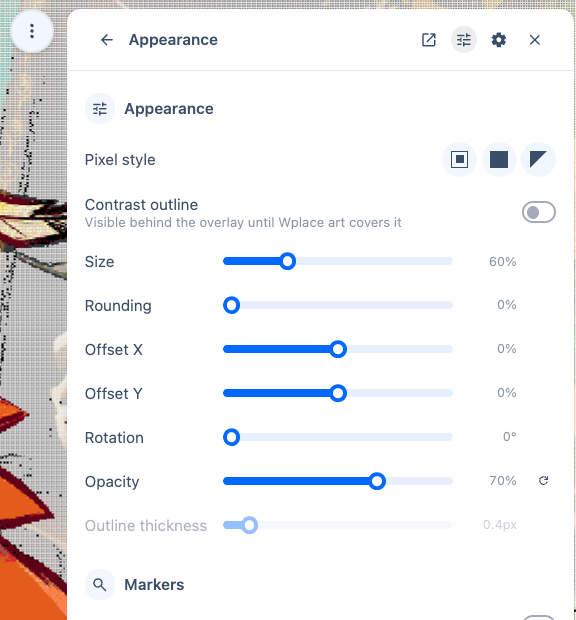
Zoom in while adjusting them. At a distant zoom, small differences in shape are hard to see.
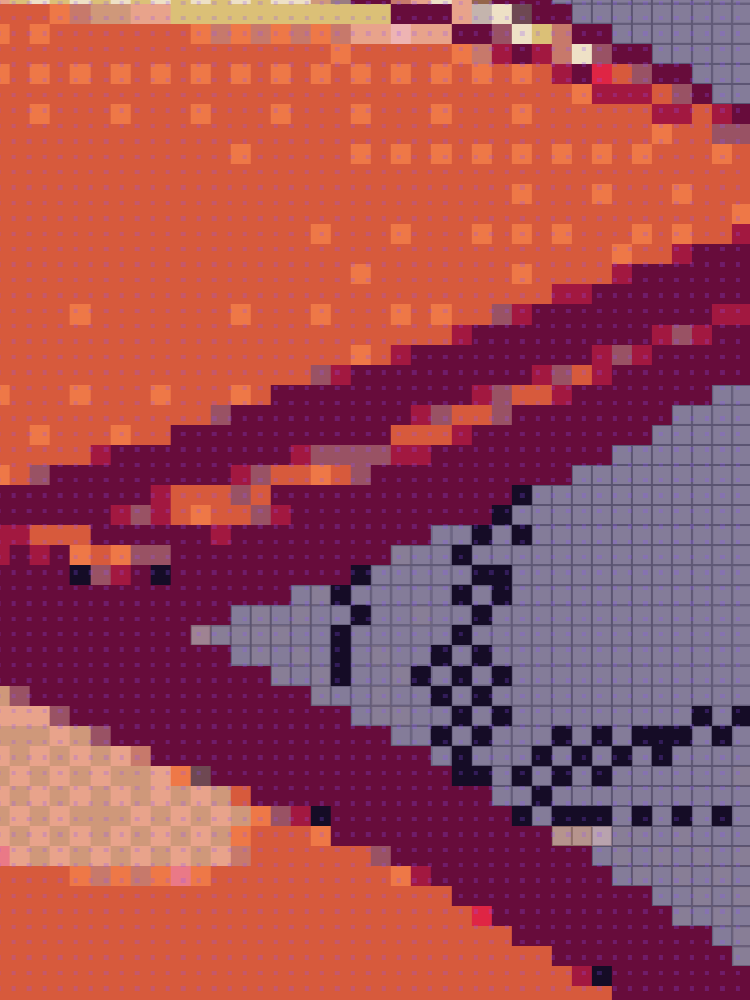
Full pixels
Full pixels cover most of each map cell.
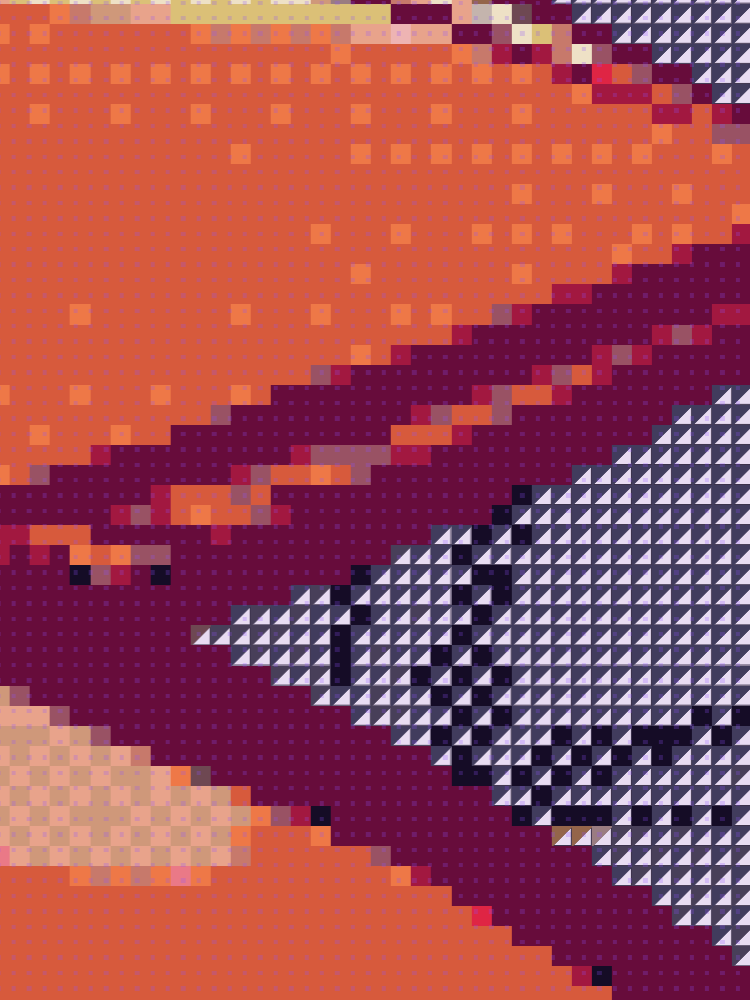
Corner pixels
Corner pixels leave the centre of the map cell visible.
Small pixels
Small pixels leave more of the canvas visible around each target colour.
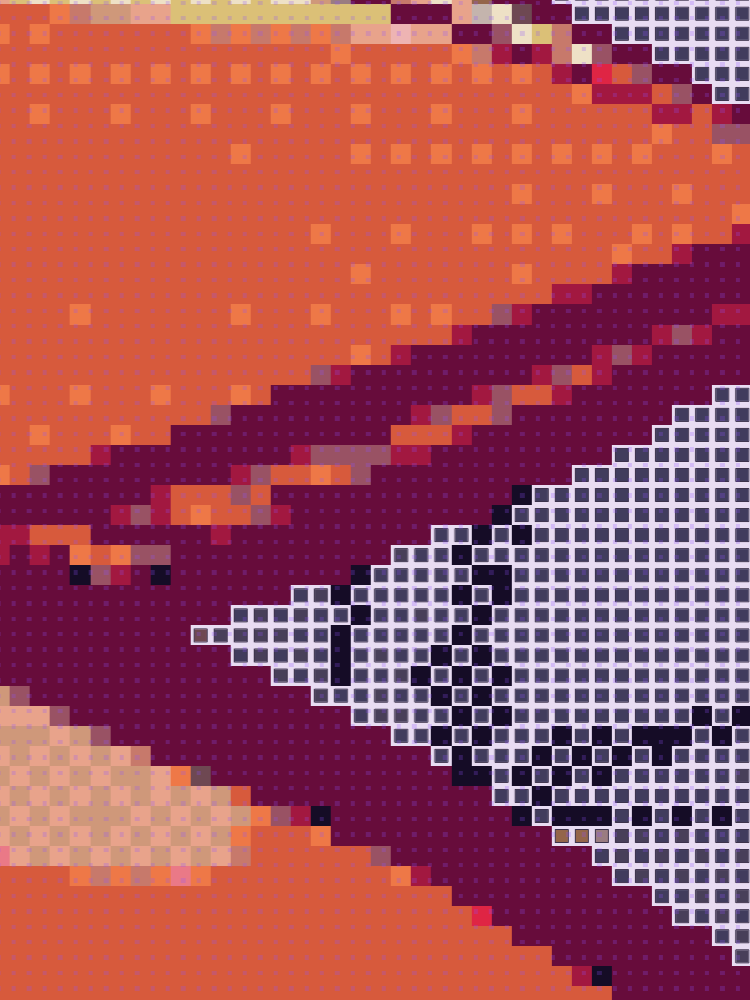
Contrast outline adds an outline behind the overlay. It remains visible until Wplace artwork covers it.
Change one template
Open the template display menu on the map rail. Expand Pixels, Markers, or Colours to change that group.
Use defaults keeps a group linked to the default appearance. Turn it off to give this template its own settings.
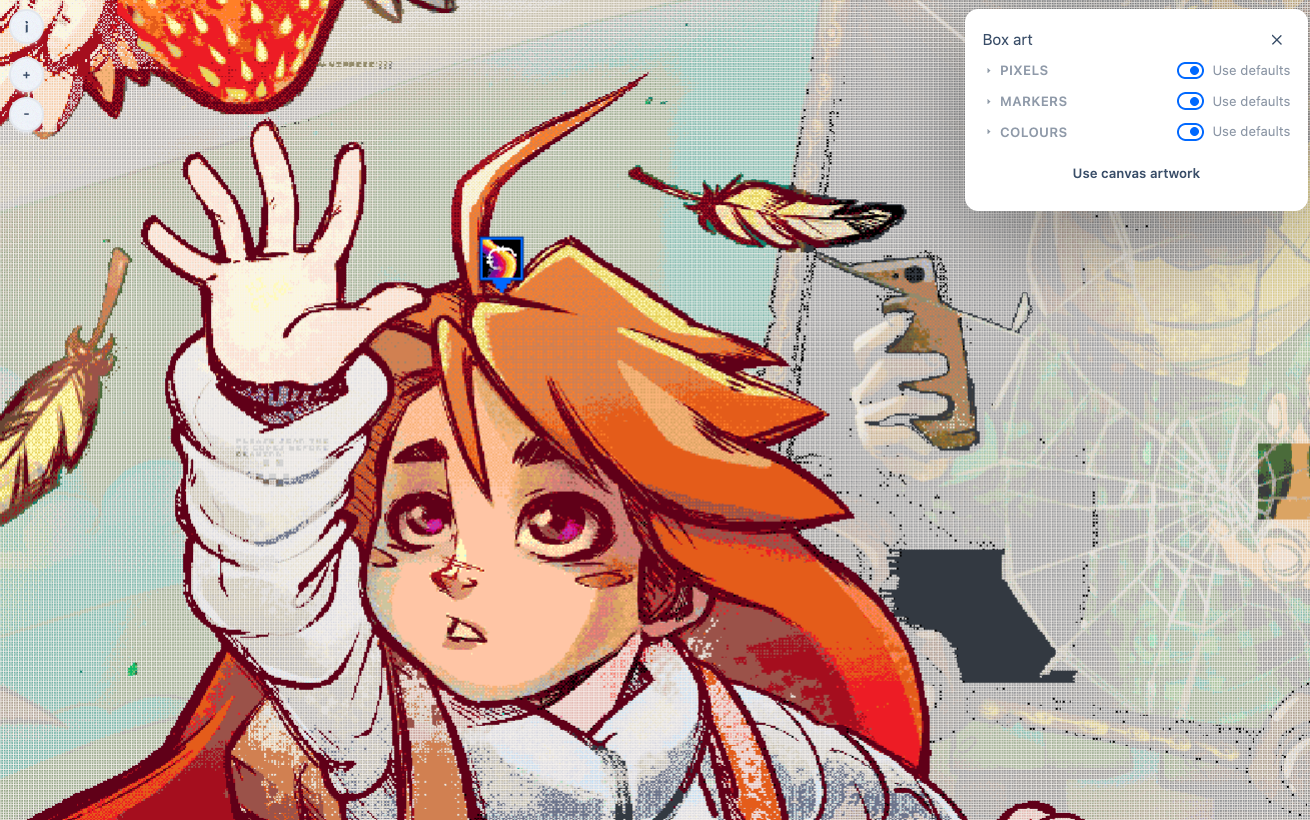
Show only the colours you need
In Colours, toggle palette swatches to show or hide those colours in the overlay. Highlight the selected colour follows your selection in Wplace's paint drawer.
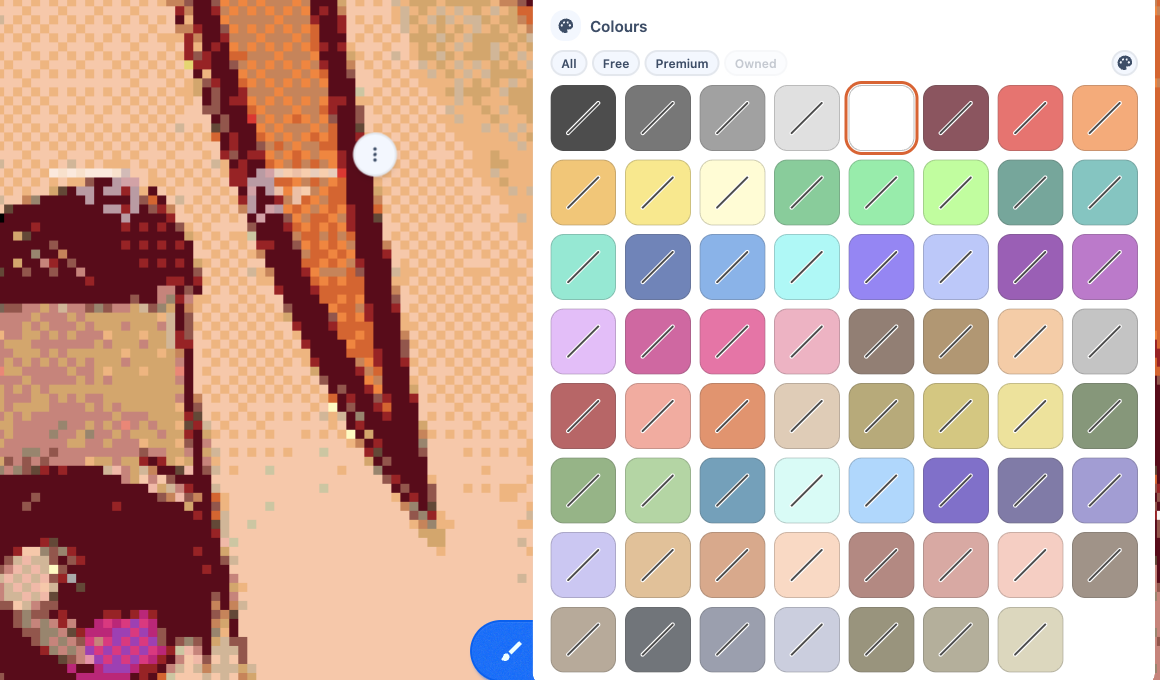
Find remaining work
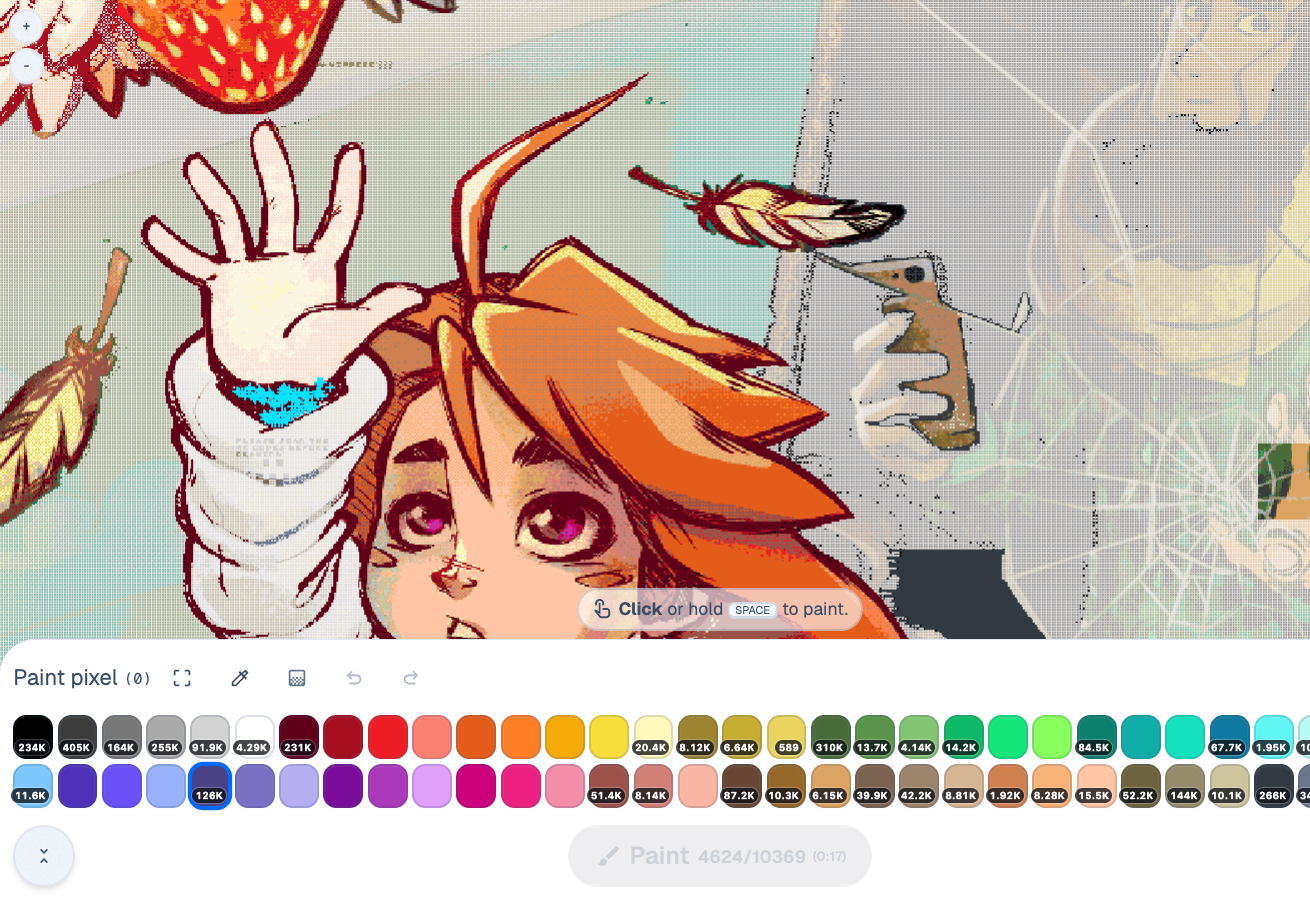
Select a colour in Wplace. Caelestis shows remaining work for that colour and can move the map to unfinished pixels.
The middle-click navigation order is in Settings → Painting. It searches the template under the viewport centre, or the nearest template if the centre is empty.
Set up markers
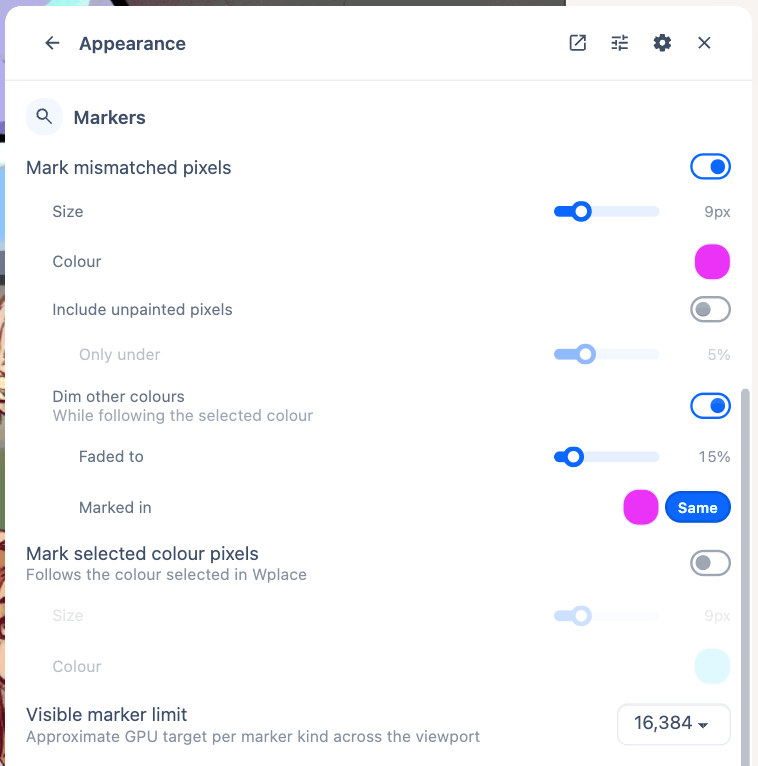
Open Appearance → Markers.
| Control | What it marks |
|---|---|
| Mark mismatched pixels | Painted pixels whose colour differs from the template. |
| Include unpainted pixels | Adds blank pixels to the mismatch markers, below the configured remaining-work threshold. |
| Mark selected colour pixels | Template pixels asking for the colour selected in Wplace. |
| Dim other colours | Makes other colours' markers less prominent while following one colour. |
Each marker kind has colour and size controls. Enable the marker kind before adjusting its controls.
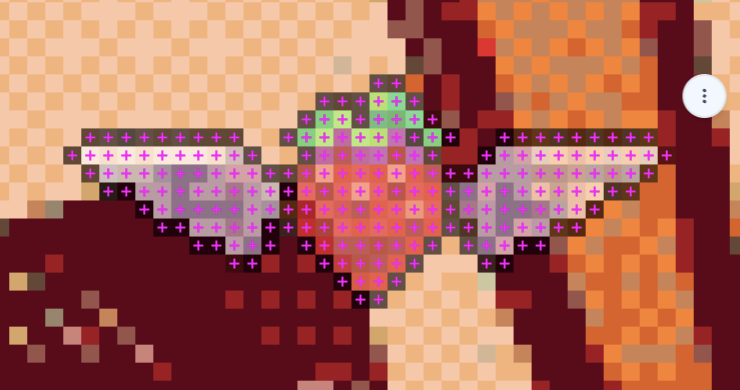
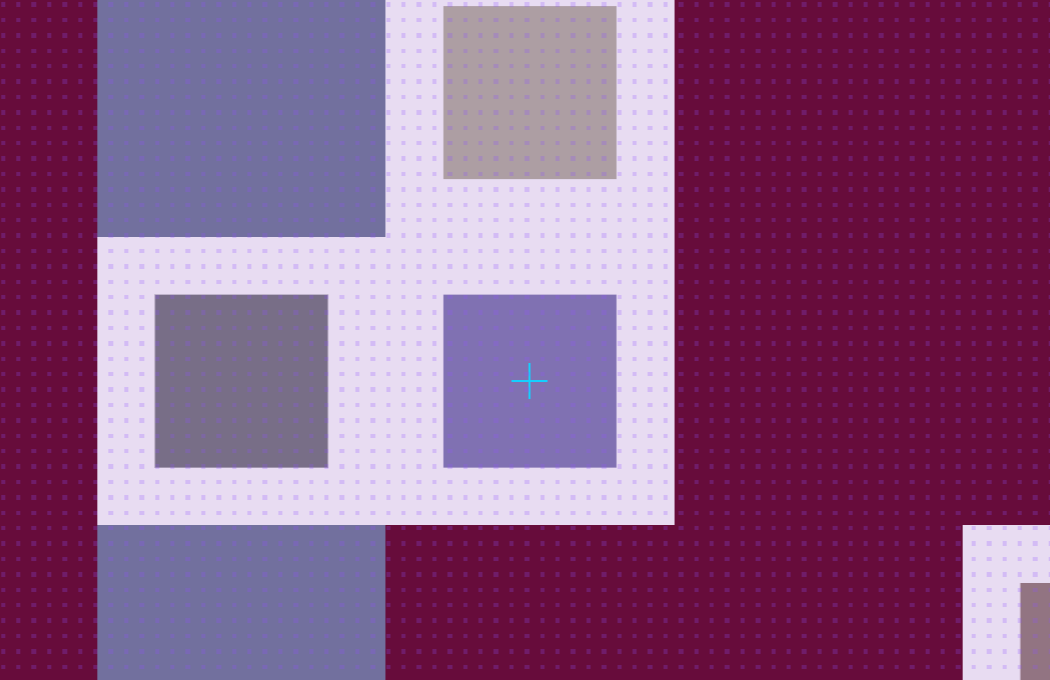
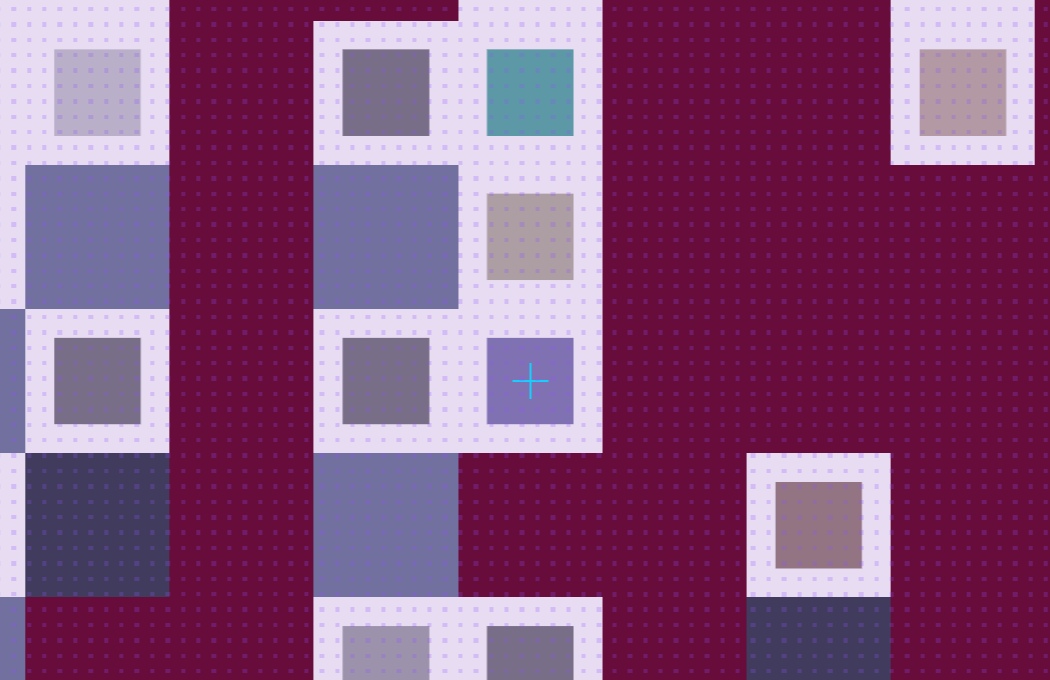
Markers keep their screen size
Zoom changes the map, not the marker size. These two views show the same marker at different zoom levels.
Keyboard controls
Press Shift+/ to open the keyboard reference. It shows your current bindings for colour navigation, paint drafts, map peeking, overlay visibility, and opacity.
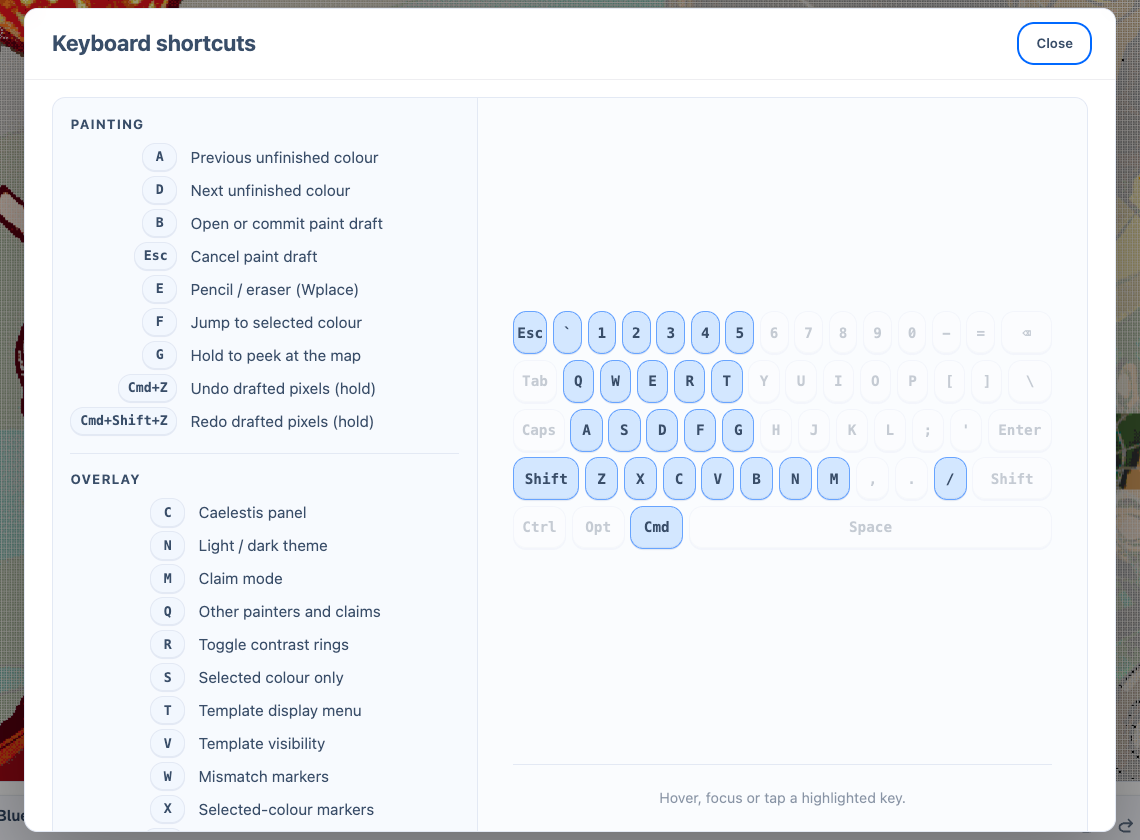
Change bindings in Settings and shortcuts.