This guide places a local template on Wplace. You need the userscript installed and an image to paint. You do not need a Caelestis server.
1. Import your artwork
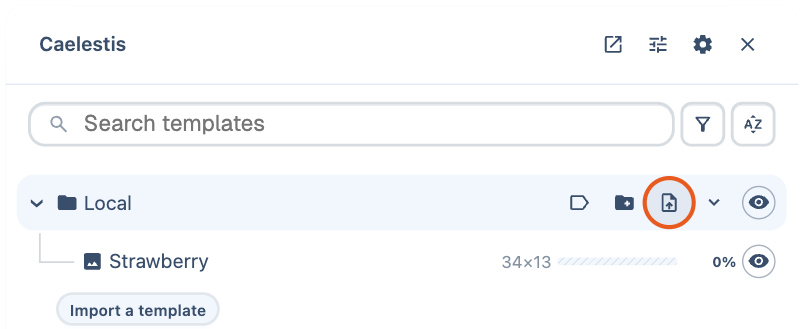
Open the Caelestis panel from Wplace's map controls. Hover the Local heading and click its import icon, outlined below. The Import a template button below the list does the same thing. Choose your file.
Caelestis accepts PNG images, Blue Marble exports, and native .wplace files.
2. Place it on the map
For an image without a saved position, move the artwork to where you want to paint. Use the blue checkmark to confirm the position. The × cancels placement.

3. Check the overlay
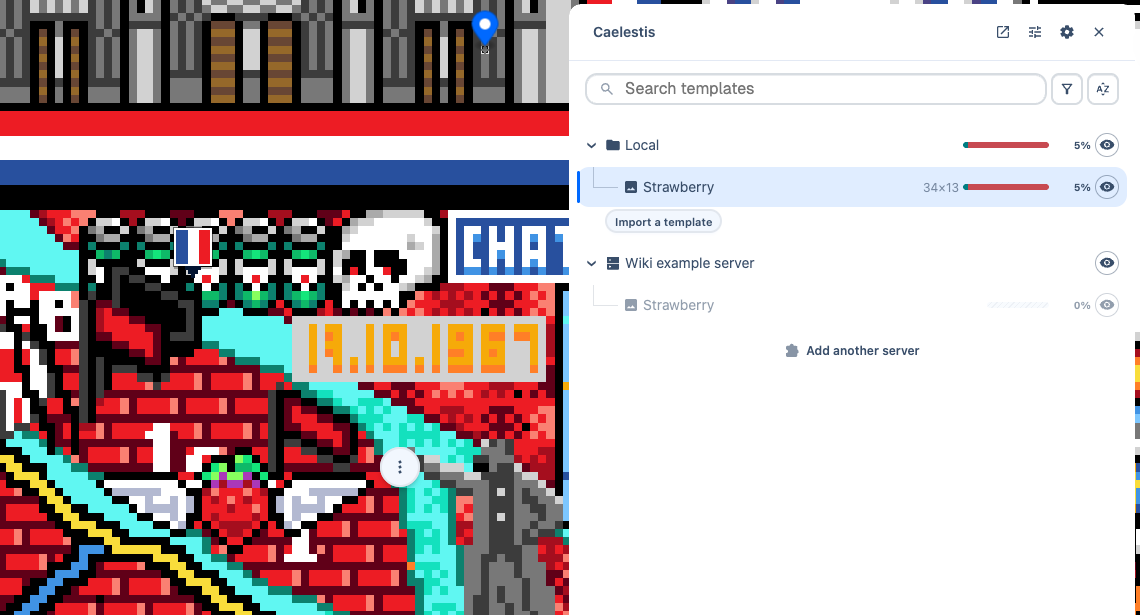
Your template now appears under Local. Zoom in until individual map pixels are visible. Check that the artwork sits where you intended.
The eye beside a template shows or hides its overlay. Use the template's actions menu to move it again.
4. Choose a colour and paint
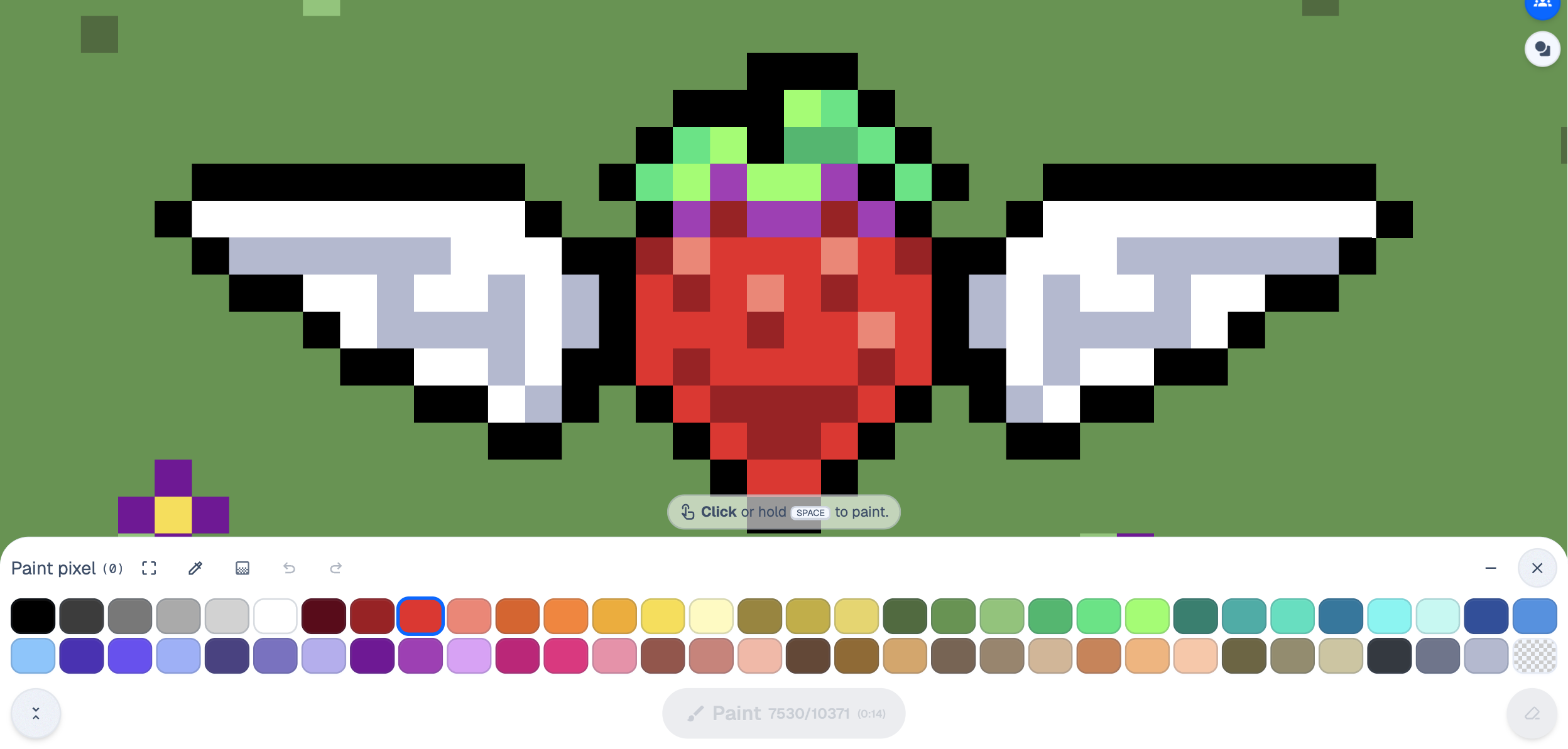
Select a colour in Wplace's palette. Caelestis marks remaining work for that colour. Paint through Wplace as usual.
Press Shift+/ to see the current keyboard shortcuts. The painting guide explains colour navigation and marker settings.
Continue
- Change the overlay to use smaller pixels, rounded corners, or outlines.
- Organise templates into folders and tags.
- Connect to a server to use shared templates and progress.